In this guide
Every completed game in Rostara already records who said they were going, how full it got and, if you published teams, who played with whom. Group History turns that into four views for the group's organizers, plus a card for each member. There is nothing to set up and nothing to fill in: it uses the games you've played.
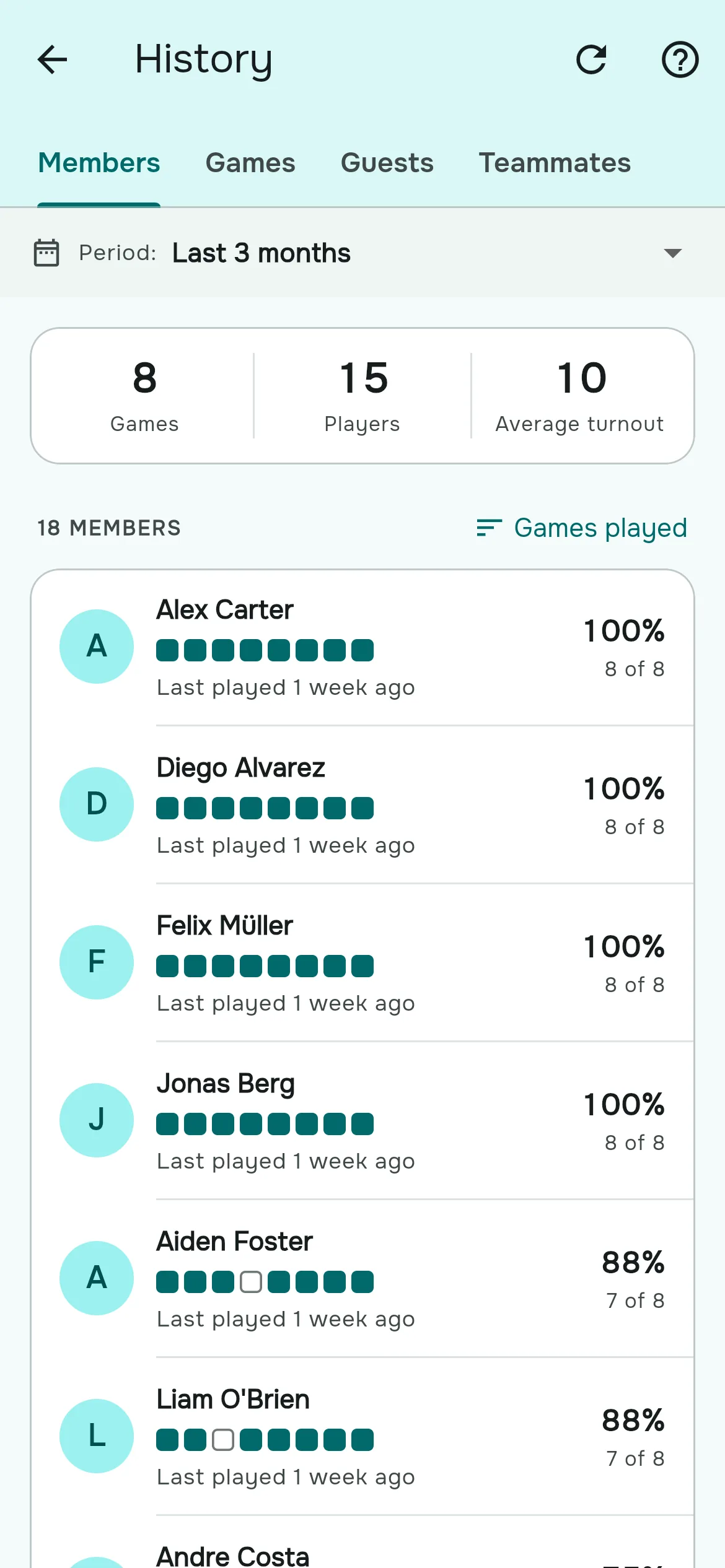
What it shows
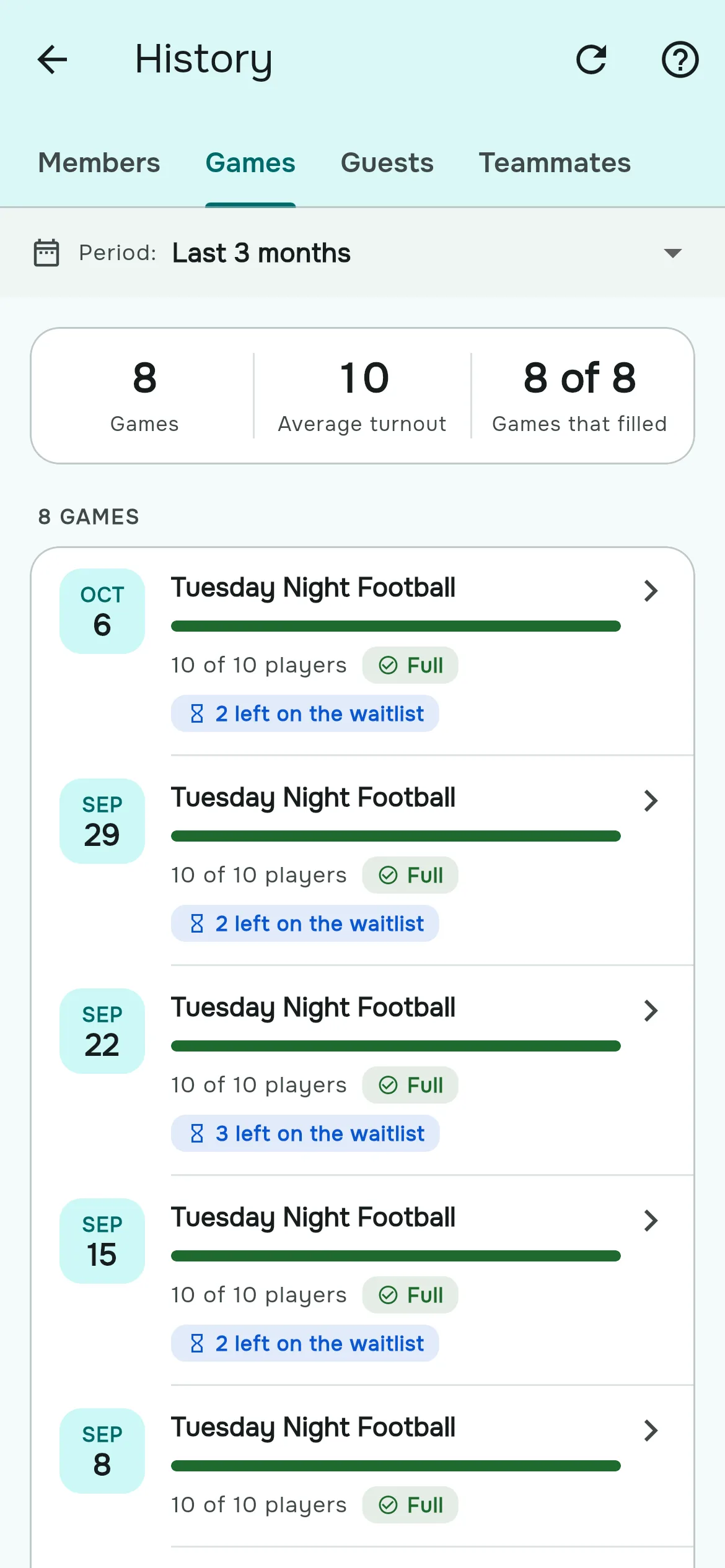
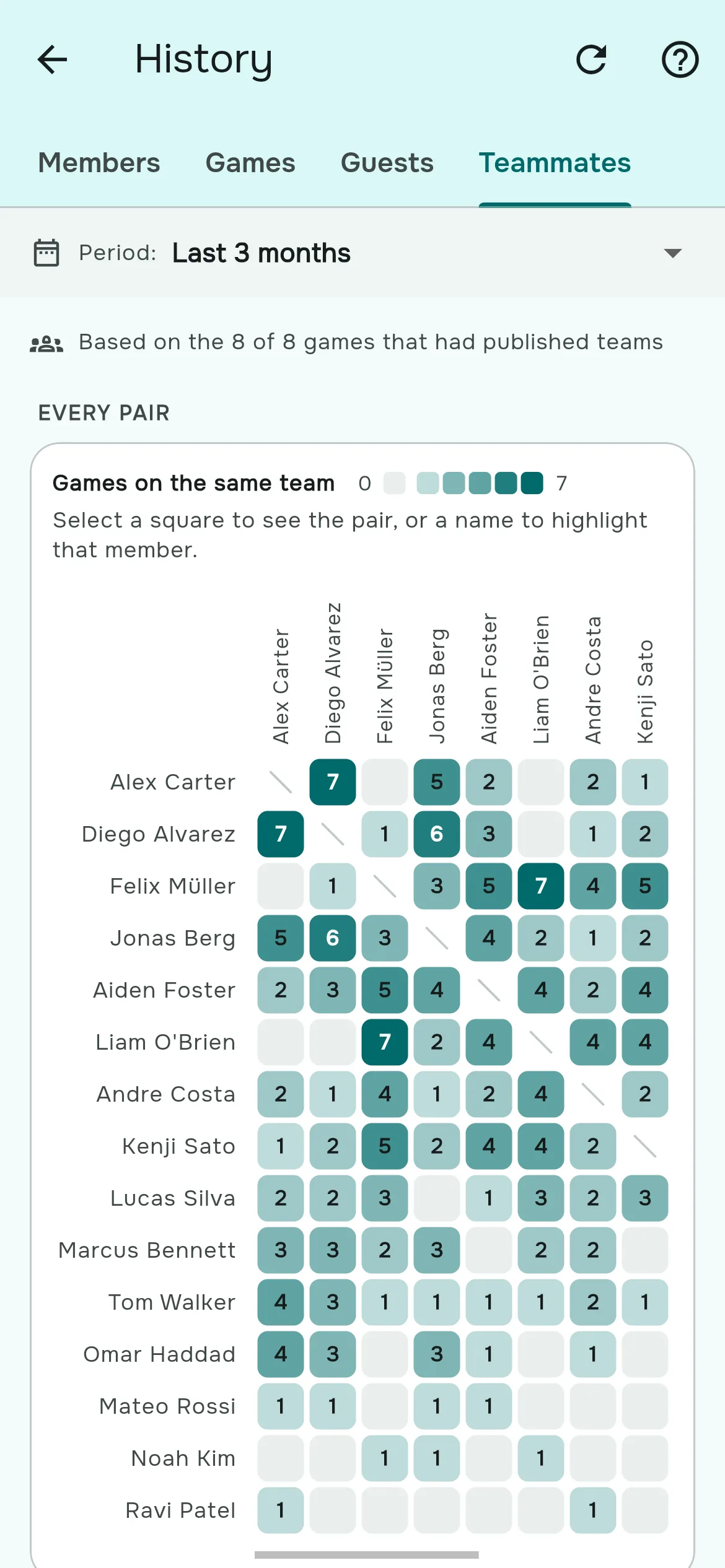
| Tab | What you see | Questions it answers |
|---|---|---|
| Members | Each member's participation rate, games played, when they last played, and a strip of their last ten games: played, missed, or before they joined. | Who are the regulars? Who has stopped coming? |
| Games | Every completed game with its turnout, whether it filled, how many were left on the waitlist and how many guests came. | How full do our games get? Do we need a bigger pitch? |
| Guests | Members ranked by the guests they added. | Who brings new people? |
| Teammates | A grid of every pair of members, darker the more games they spent on the same team. | Do the same players always end up together? |
Tap any member to open their card: when they joined, participation, games played, when they last played, how often they were promoted from the waitlist, guests added, their attendance strip, their most frequent teammates and their recent games.
Choose the period
The Period menu at the top offers Last 30 days, Last 3 months (the default), This year, or Custom, any date range back to 2020. Every view and member card follows the period you choose.
How the numbers are counted
- Only completed games count. A game completes automatically at its end time, or three hours after the start if it has none. Cancelled and upcoming games don't count.
- Played means the member's RSVP was Going when the game completed. There's no check-in, so if someone didn't actually show, an organizer can change their answer on that game and History follows.
- Participation is games played divided by the completed games the member could have played since they joined, within the period.
- Teammates come from published teams. Games without published teams don't count toward the grid.
- History loads when you open it. Tap Refresh after changing an RSVP on a past game.
Share the teammate view with members
History is for the group's organizers. One part can be shared: in Group Settings → Events, switch on Share teammate history with members and members get the Teammates grid on their History tile. It is a nice way to show the balancer really does mix people up.
Ways organizers use it
- Sort Members by Last played to find people who have drifted away, and message them before they're gone.
- Check Games for "Full" and waitlists to decide whether to book a bigger pitch or a second slot.
- Thank the regulars. Participation over This year makes an easy end-of-season shout-out.
Questions organizers ask
Who can see Group History?
The group's owner and admins. Members can see the Teammates grid if an organizer shares it.
How is the attendance rate calculated?
Games played divided by the completed games the member could have played since joining, within the selected period.
Why is a game missing?
Only completed games count. Check the game has completed and falls inside the selected period.
How do I correct who played?
As an organizer, change that member's RSVP on the completed game. History updates when you next open it or tap Refresh.
Can I export History to a spreadsheet?
No, History is viewed in the app. The ledger has its own CSV export.
Does it count guests?
Yes, in each game's turnout and on the Guests tab, credited to the member who added them.
Can I see seasons?
Use a Custom period for the dates of your season.