In this guide
Every Rostara group has an invite link and a six-character code. Anyone who opens the link and signs in lands in your group. Players who never sign up can still be part of it: organizers add them by name, and they can claim that spot, with its ratings and history, whenever they do join.
Invite players
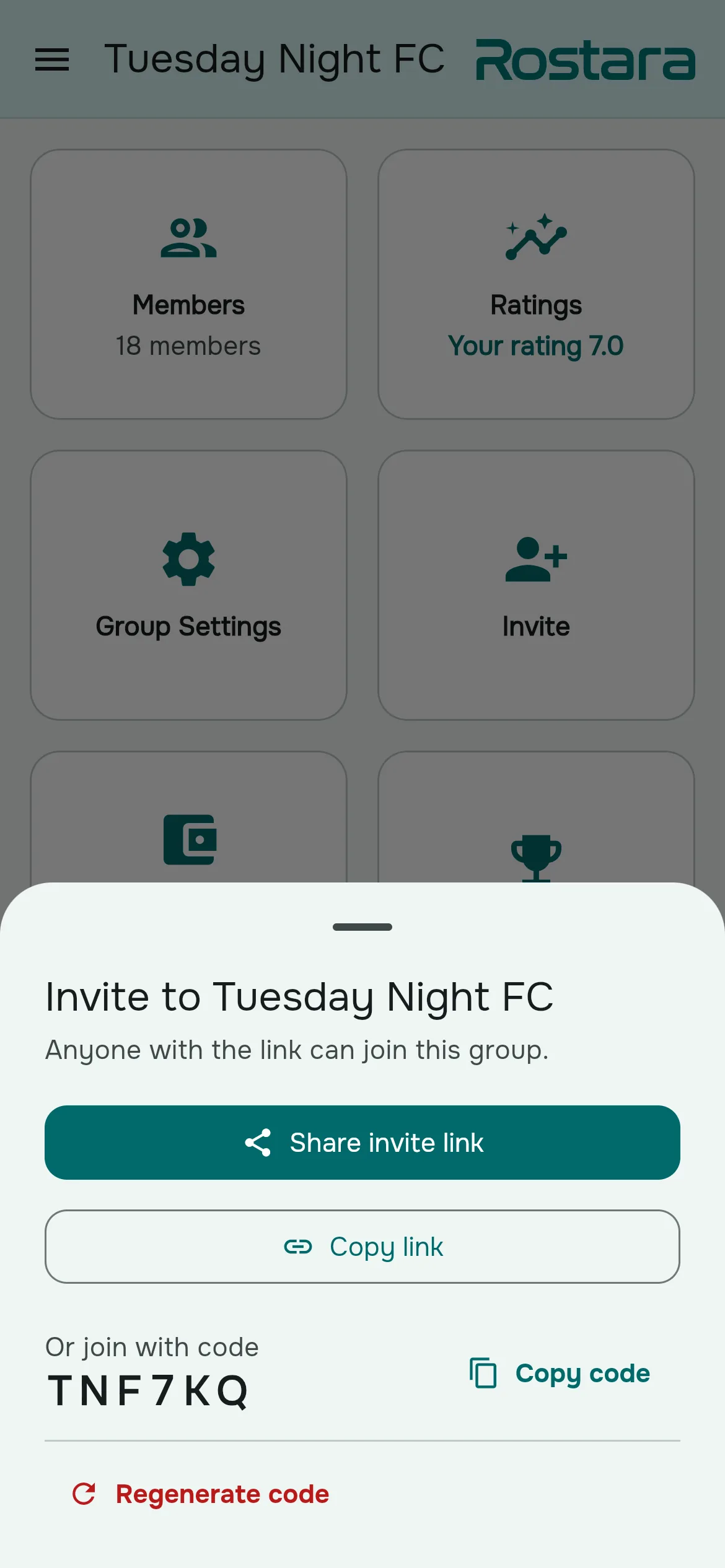
- On the Group tab, tap Invite. Only organizers see it.
- Tap Share invite link. On a phone this opens the share sheet; on a computer it copies the link. You can also tap Copy link, or read out the six-character code under "Or join with code".
- Paste the link into your chat. The message reads "Join {your group} on Rostara to RSVP for our games."
The code is six letters and digits, never I, O, 0 or 1, so it's easy to read aloud. Links look like rostara.app/join/AB3CDE.
Make a new code
If the link has been shared too widely, the owner can open Group Settings → General → Invite Code and tap Regenerate code. The old link stops working at once; people already in the group are not affected.
How players join
- The player opens the link, then signs in or signs up (and verifies their email if they used one).
- The "Join a Group" dialog opens with the code filled in. They can also join from ☰ → My Groups → Join Group and type the code.
- On "Pick Your Profile", they choose the spot the organizer made for them (the best match is tagged "Suggested") or "I'm new here".
- They tap Join and the group opens.
Names have to be unique in a group, ignoring capitals and spaces, so two Alexes need a last initial or a nickname.
Players who don't use the app
Some regulars will never sign up, and that's fine. Organizers add them on Group → Members with Add Member. A name-only player can be rated, put on teams, answered for on RSVPs and charged in the ledger like anyone else. Organizers see a "No account yet" tag on them.
When that person does join, they pick their name on "Pick Your Profile" and take over the spot with all its history: ratings, RSVPs and balance.
Joined as new by mistake?
If someone joined with "I'm new here" when a spot already existed for them, an organizer opens the new member's ⋮ menu → Merge into existing member..., picks the spot and confirms. Everything is combined under one member, keeping the spot's ratings and the new account.
Roles: owner, admin and member
| What | Owner | Admin | Member |
|---|---|---|---|
| RSVP, rate (when allowed), react to notices | Yes | Yes | Yes |
| Create games, notices and group tournaments; make and publish teams | Yes | Yes | No |
| Invite, add name-only players, rename, hide and remove members | Yes | Yes (but can't remove other admins) | No |
| Group Settings | Yes | Yes | No |
| Promote to admin, demote to member | Yes | No | No |
| Rename or delete the group; regenerate the invite code | Yes | No | No |
To make someone an admin, the owner opens their ⋮ menu on the Members page → Promote to Admin. A good setup for a busy group is one owner plus one or two admins who can post games when the owner is away, and a treasurer for the money (see shared costs).
The Members page
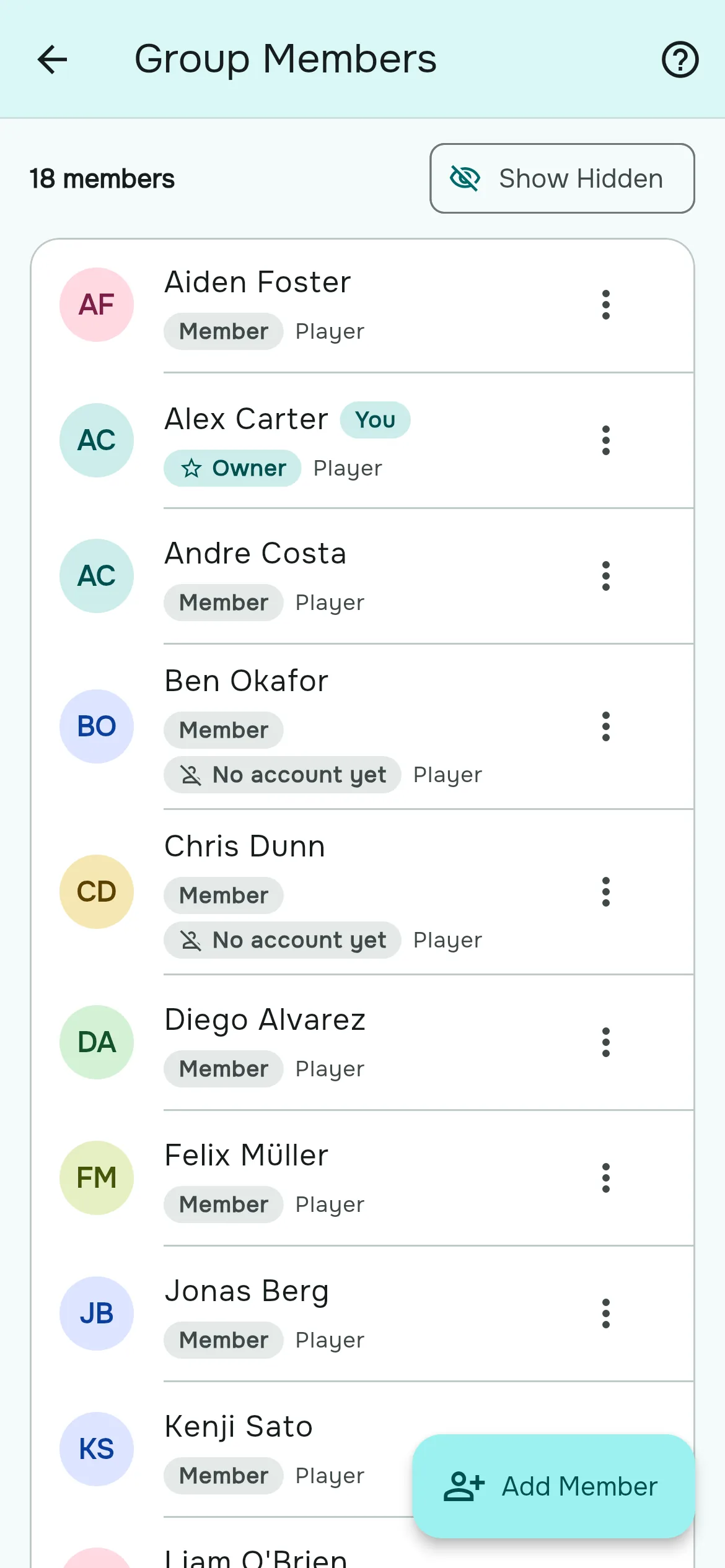
Each row shows the member's role and, for organizers, tags such as "No account yet" or "Hidden". The ⋮ menu offers organizers:
- Edit Member: change how their name appears in this group.
- Hide Member: takes them off lists and counts without removing them, handy for someone injured for a season.
- Mark as not playing: for organizers who run the group but don't play. They leave the Ratings page and show as "Manager".
- Unlink Account: disconnects the wrong account from a spot and keeps the spot's history.
- Delete: removes the member, the ratings they gave and received, and their answers to upcoming games.
Every member can also report or block another member from the same menu.
Leaving, and handing over the group
- Members leave from ☰ → Leave Group. Their answers to upcoming games are removed; their history stays as a spot they can claim again if they come back.
- There is no "make owner" button. When the owner leaves, the group passes to an admin, or to another member with an account if there are no admins. If the owner is the only member with an account, leaving deletes the group.
- To hand over cleanly, promote your successor to admin first, then leave.
Building a pool that lasts
- Keep inviting. A healthy weekly game has half as many regulars again as it has spots.
- Welcome guests. Today's guest is next month's regular. Let members bring friends; see guests.
- Notice who drifts away. Group History shows who hasn't played lately; see group history.
Questions organizers ask
How do I invite players?
Group tab → Invite → Share invite link, then paste the link in your chat. Players who open it and sign in join your group.
Where do I find my group's invite code?
On the Invite sheet under "Or join with code", or in Group Settings → General → Invite Code.
Do all players need an account?
No. Organizers can add players by name, and those players can be rated, put on teams and answered for on RSVPs.
How does a player claim the spot I made for them?
They join with the link or code and pick their name on "Pick Your Profile". Their ratings, RSVPs and balance come with it.
Someone joined twice. How do I fix it?
Open the new member's menu on the Members page and choose Merge into existing member.
How do I make someone an admin?
The owner opens their menu on the Members page and taps Promote to Admin.
How do I transfer ownership?
There's no direct option. Promote your successor to admin, then leave the group; ownership passes to an admin.
My invite code doesn't work.
Check it's six characters; codes never contain I, O, 0 or 1. The owner may also have made a new code, which stops the old one working.
Is there a limit on group size?
No plan limits the number of members.