In this guide
A good weekly game runs on rhythm: the same slot, the same announcement time, the same deadline. Rostara's games are built around that. You create a game (or duplicate last week's), choose when RSVPs open and close, and everyone answers with one tap on their Home screen. The numbers are always visible, so you know by the deadline whether the game is on.
A weekly rhythm that works
- Same slot every week. People plan around a fixed evening. Book the pitch or court first, then post the game.
- Open RSVPs at a set time, for example Monday at 9 am for a Thursday game. Everyone gets the same chance at a spot, and nobody has to watch the chat.
- Close RSVPs before the game, giving you time to make teams and chase numbers. Many groups close 12 to 24 hours before.
- Have a minimum. Decide in advance how many players you need, for example eight for a 5-a-side, and cancel early if the deadline passes short. Players will thank you for not discovering it at the pitch.
- Keep a bigger pool than the game. For a ten-player game, a group of 12 to 15 regulars usually fills it every week.
Create a game
- On the Events tab, tap New event. Only the group's owner and admins can create games.
- Fill in Event Name and Location, both required. The location becomes a link that opens Google Maps for players.
- Under Schedule, set Starts (it defaults to the next full hour) and, optionally, Ends. Tick All Day for a tournament day.
- Add Notes for anything players should know: parking, bibs, the door code.
- Under RSVP, choose the options you want (each is explained below): Limit attendance, Set RSVP deadline and Schedule for later.
- Under Teams, choose who can make teams with Team Balancing, and tick Auto-sync roster when RSVP closes if you want the roster built from the Going list at the deadline.
- Tap Create.
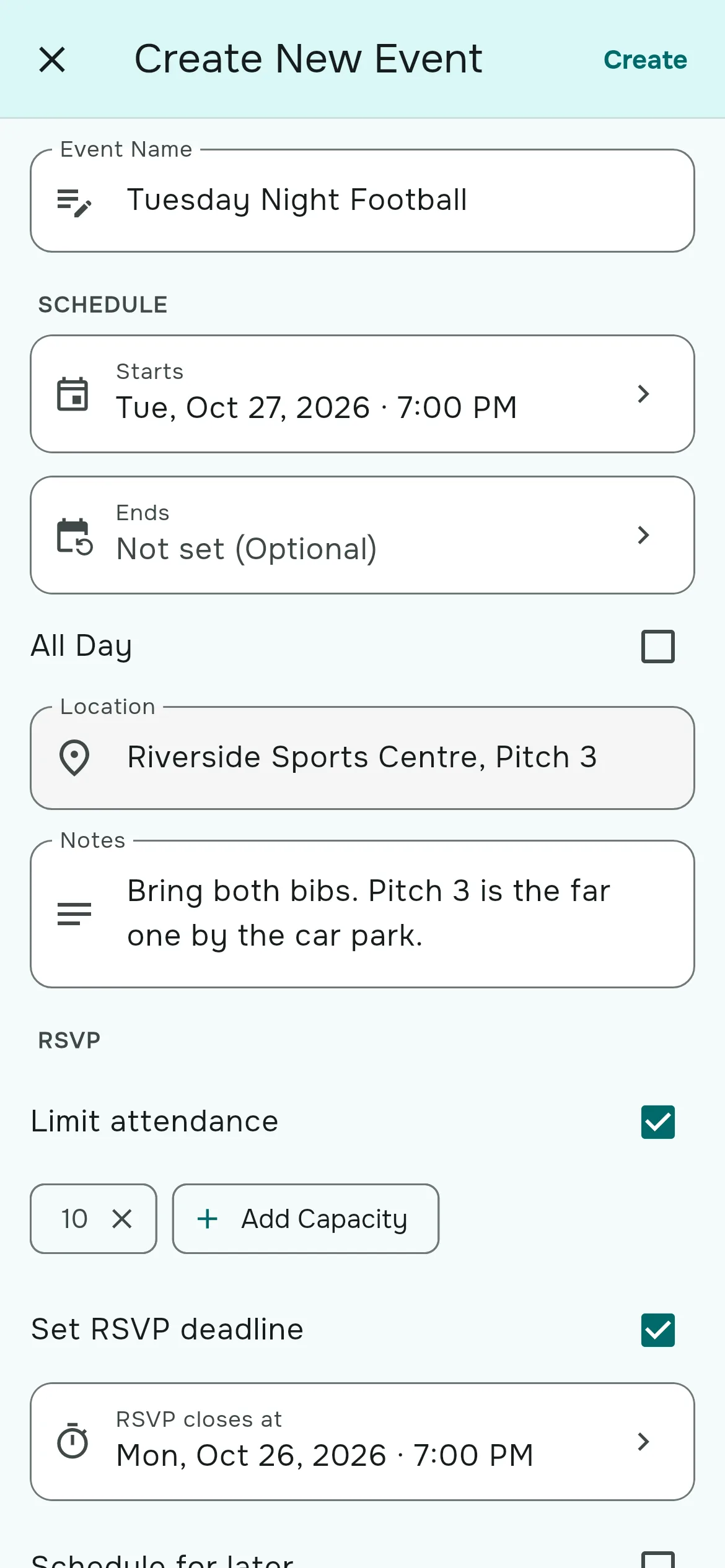
The RSVP options
| Option | What it does |
|---|---|
| Limit attendance | Sets the player limit. Once it is reached, new "Going" answers join a waitlist that fills spots automatically. You can add more than one size, such as 10 and 12. See waitlists and guests. |
| Set RSVP deadline | RSVPs close automatically at the time you pick, which can't be after the game starts. After that, only organizers can change answers. |
| Schedule for later | The game is listed straight away but RSVPs only open at the "Goes live at" time. At that minute the group gets a "New event" notification. |
How players answer
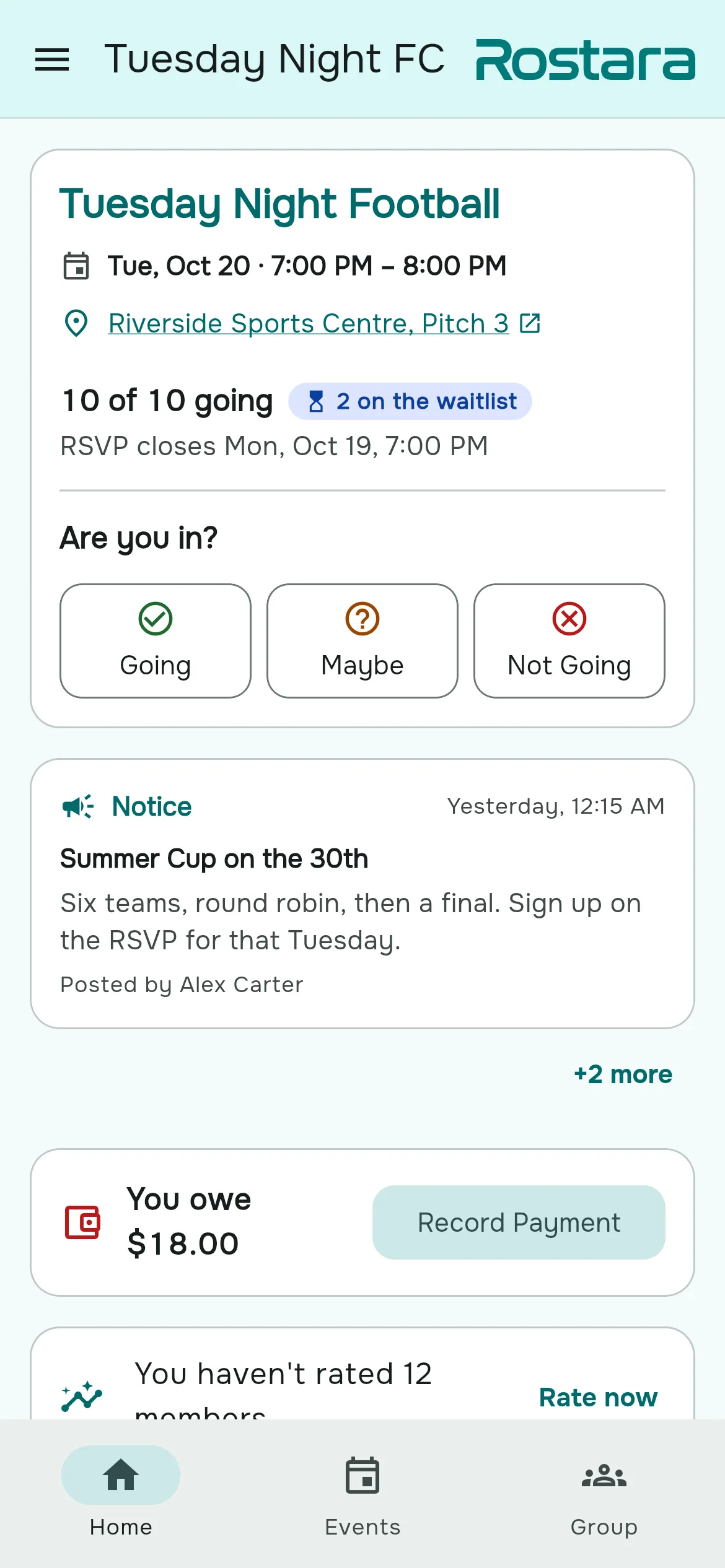
- The game card on the Home tab asks "Are you in?" with Going, Maybe and Not Going. One tap saves the answer.
- After answering, the card collapses to a status tag. Tap it to change the answer while RSVPs are open.
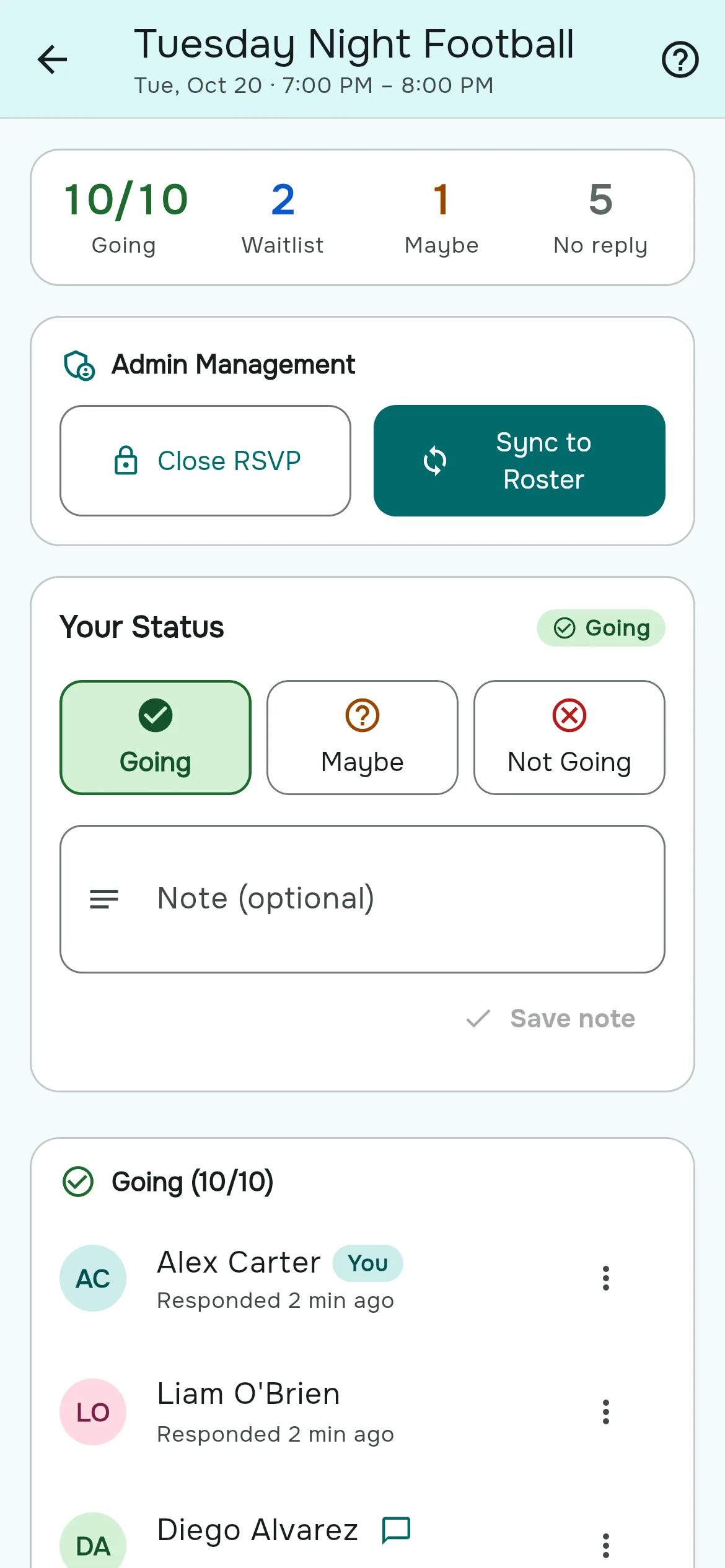
- On the RSVP page (tap Details on the game), players can add a note of up to 500 characters, such as "Bringing a ball" or "Might be ten minutes late".
- If the game is full, "Going" puts them on the waitlist with their place in the queue: "Waitlist #2".
Everyone in the group can see every answer and note, and who hasn't answered yet. The card shows the headcount ("7 of 10 going") and the deadline, which turns into a countdown in the last 24 hours and goes red in the last two.
What "Maybe" means
Maybe doesn't hold a spot. It tells the organizer you might come, and you'll get the "RSVP closed" notification at the deadline so you can decide. If you switch from Going to Maybe, your spot goes straight to the first person on the waitlist.
Organizer tools on the RSVP page
- Close RSVP early: Close RSVP in the Admin Management card. Everyone who answered Going or Maybe, and the waitlist, gets a notification.
- Reopen: Reopen RSVP reopens it without asking.
- Change someone's answer: the ⋮ next to any player lets you set Going, Waitlist, Maybe or Not Going, or remove the answer. This works after the deadline too, and it is how you answer for players who don't use the app.
- Turn the Going list into a roster: Sync to Roster builds the team roster from everyone answering Going, guests included, ready for the team balancer.
What happens to a game over time
| Status | What players see | How it gets there |
|---|---|---|
| Scheduled | "Goes live Wed, Aug 19, 5:00 PM". RSVP not open yet. | Created with Schedule for later. |
| Live | The normal game, open for RSVPs. | Created without a schedule, at the go-live time, or with Go Live Now. |
| Completed | "Completed". | Automatically at the end time; without one, 3 hours after the start (24 hours for all-day games). Or Complete Event. |
| Cancelled | "Cancelled". Answers are kept. | Cancel Event. Undo it with Reactivate Event. |
The organizer's menu on the game (Event Management) offers whatever applies: Edit Event, Duplicate Event, the status changes above, and Delete Event, which removes the game and its RSVPs permanently.
Next week's game in two taps
Open last week's game and choose Duplicate Event. Everything is copied and moved forward exactly seven days at the same clock time: start, end, deadline and go-live. RSVPs, teams and rosters are not copied. Check the form and tap Create.
Directions and calendars
- Tap the underlined location to open it in Google Maps.
- Tap Add to Calendar under the game details and choose Google Calendar, Outlook, or "Apple Calendar / Other (.ics)". The title, time and location are copied; if the game later moves, add it again.
Who gets notified
- "New event" goes to every member when a game is created live, or when a scheduled game's go-live time arrives.
- "RSVP closed" goes to everyone who answered Going or Maybe, and to the waitlist, when RSVPs close.
- "You're in!" goes to a player who moves from the waitlist to Going.
Players choose which of these they receive. See notifications. Edits, cancellations and deletions don't send a notification, so post a notice when you cancel a game.
Questions organizers ask
How far ahead should I post a game?
For a weekly game, three to five days ahead works well. Use Schedule for later so the game is visible straight away but RSVPs open at the same time every week.
What RSVP deadline works best?
12 to 24 hours before the start gives you time to make teams and chase numbers. Set it per game, or once as a group default in Group Settings.
Can players see a game before RSVPs open?
Yes. A scheduled game is listed for everyone with its go-live time, but the RSVP buttons stay off until it goes live.
How do I set up a recurring weekly game?
Duplicate last week's game. Everything moves forward seven days, including the deadline and go-live time. There are no automatic repeating games yet.
Can players change their answer after the deadline?
No. They ask an organizer, who can change any answer from the RSVP page at any time.
Can I RSVP for a player who doesn't use the app?
Yes. Add them as a member without an account, then set their answer from the No Response list on the RSVP page.
Are players notified when I cancel a game?
Not automatically. The game shows as Cancelled; post a notice so everyone gets a push.
What is the difference between Cancel and Delete?
Cancel keeps the game and its answers and can be undone. Delete removes the game and its RSVPs permanently.
Do I need to set an end time?
No. Without one, the game completes on its own three hours after the start, or 24 hours for all-day games.
Can members create games?
No. Only the group's owner and admins can create and edit games.