In this guide
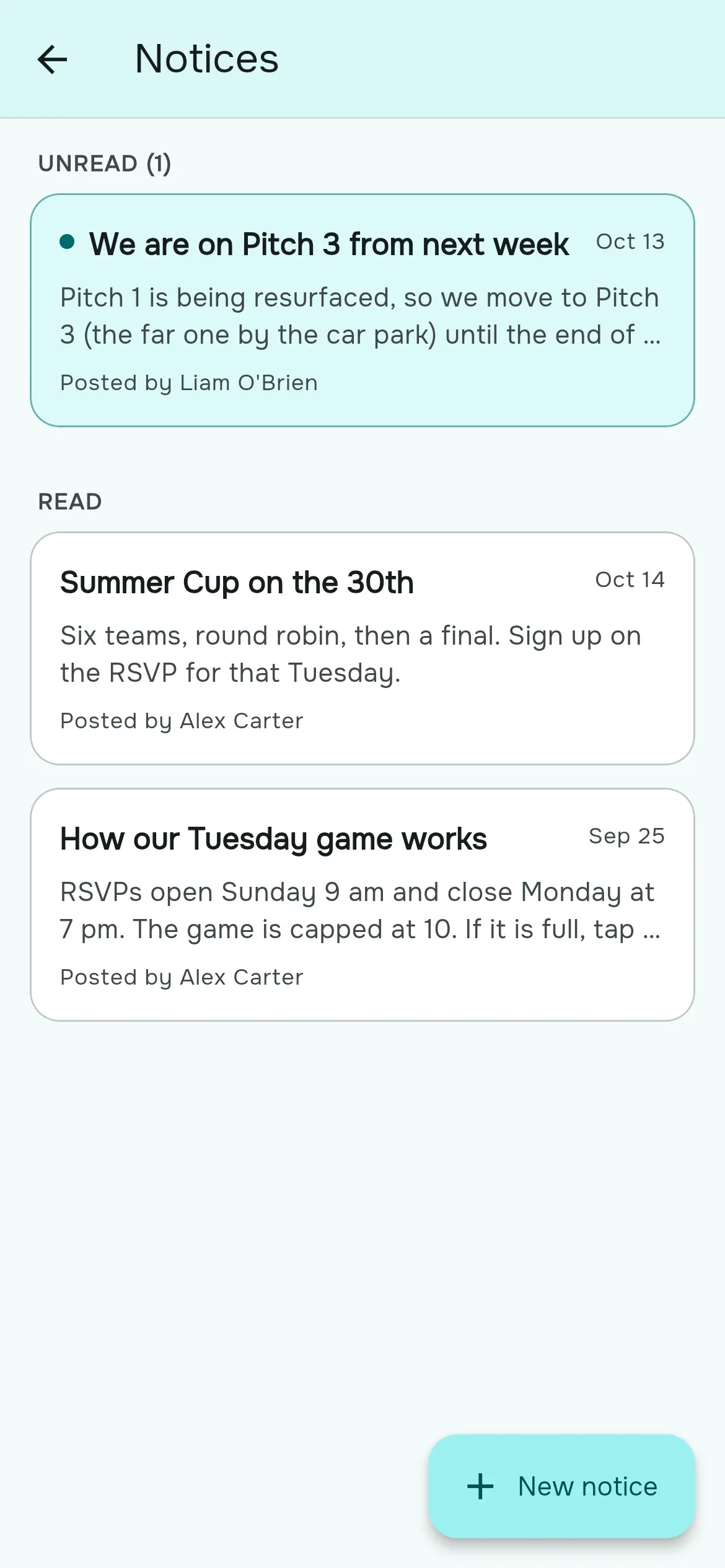
A group chat is great for banter and terrible for anything you need people to read. Notices are the opposite: only the group's organizers can post them, every member gets a push notification, and each notice stays on the board with an unread marker until the member opens it. The newest unread one also shows on everyone's Home tab.
What belongs in a notice (and what doesn't)
| Post it as a notice | Keep it in the chat |
|---|---|
| Venue or time changes, and cancelled games | "Who's got a spare ball?" |
| Group rules: the no-show policy, the guest rules | Post-game banter |
| Season news: new pitch, price changes, the end-of-season tournament | Quick logistics for one evening |
| How you do things: the rating scale, when teams go out | Anything that's out of date tomorrow |
Post a notice
- Open the Group tab and tap Notices.
- Tap New notice.
- Write a Title (up to 80 characters). It is what appears in the notification, so make it say what changed: "Thursday moves to Pitch 3".
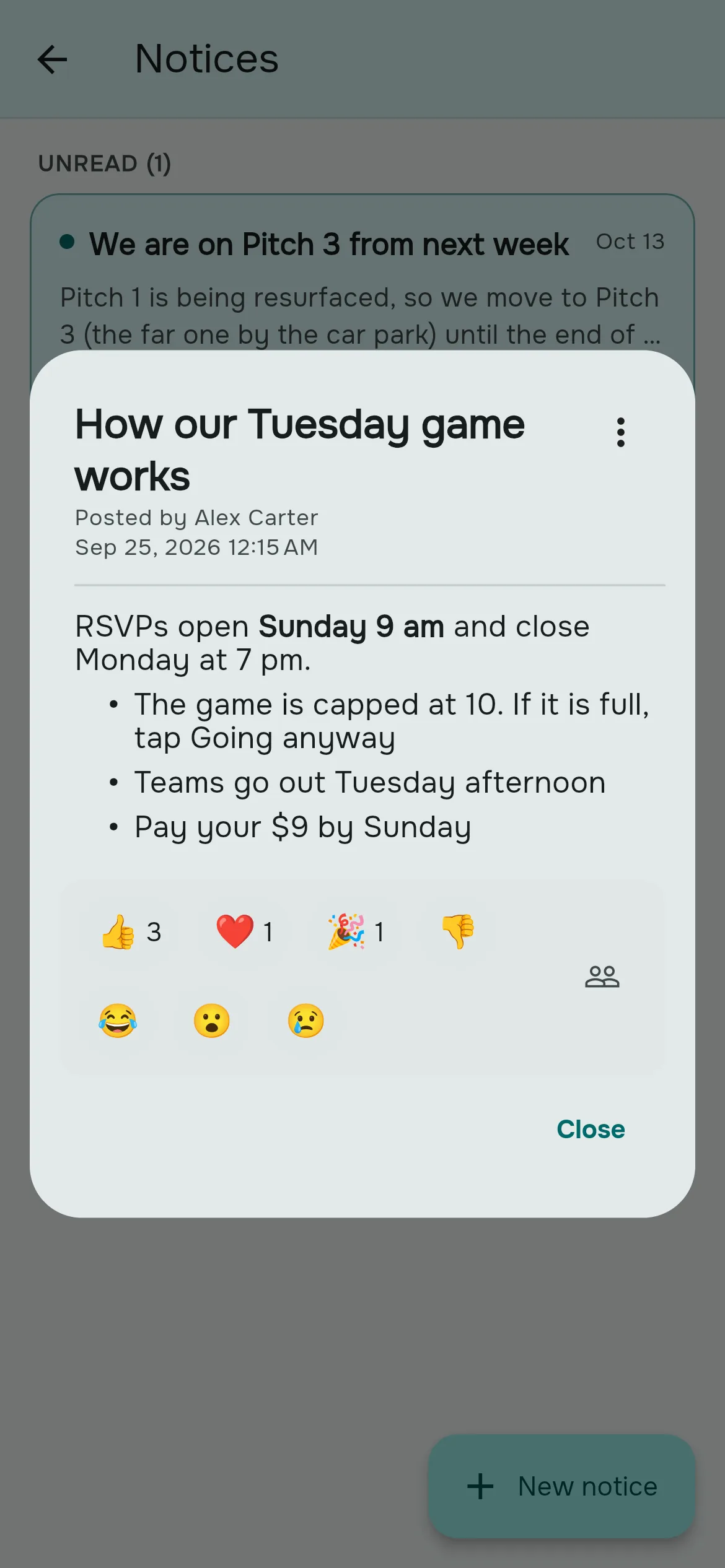
- Write the Message. You can use bold, italic, numbered and bulleted lists, and links.
- Tap Publish. Every member gets "New notice in {your group}" with the title.
Reading and reacting
- The Notices tile shows how many unread notices you have. Unread notices are listed first.
- Opening a notice marks it read, on all your devices.
- React with one of 👍 👎 ❤️ 😂 🎉 😮 😢. Tap another to change your reaction, or tap yours again to remove it.
- Organizers can tap Who reacted to see names; members see counts.
Changing or removing a notice
Published notices can't be edited, so what members read is what was sent. To correct one, open it, tap ⋮ → Duplicate, fix it, and publish. That posts a new notice and notifies the group again. Then delete the old one with ⋮ → Delete.
Reporting and blocking
Members can report a notice that breaks the rules (⋮ → Report); reports go to the Rostara team, not to the group's organizers. Members can also block a notice's author (⋮ → Block author) to hide their notices and stop their notice notifications. Undo it from the Members page with Unblock.
Good to know
- Only the group's owner and admins can post. Notices are free on every plan.
- The board shows the 50 most recent notices.
- Members who don't want notice notifications can turn off "New Notices" for the group. See notifications.
- Notices can't be pinned, scheduled or replied to; keep conversation in your chat.
Questions people ask
Do members get a notification for a new notice?
Yes. Everyone with an account gets "New notice in" your group's name with the notice title, unless they turned that notification off.
Can regular members post notices?
No. Only the group's owner and admins can post.
How do I edit a notice?
Notices can't be edited. Duplicate it, fix it and publish, then delete the original. The duplicate notifies everyone again.
What formatting can I use?
Bold, italic, numbered lists, bulleted lists and links.
Can I see who has read a notice?
No. You can see who reacted, but read status is private to each member.
Why can't I see older notices?
The board shows the 50 most recent.
Why are announcements better than the group chat?
They don't scroll away, everyone gets a notification, and the unread badge stays until each member has opened it.