In this guide
A balance score settles most arguments, but not all of them. Maybe two players never pass to each other, or someone wants to play with the new guy. Team voting gives everyone a say without turning kick-off into a debate: members build a split on their phone, the group votes, and the organizer picks a winner, usually the one at the top.
Turn on voting for a game
Each game has a Team Balancing setting in the event form, under Teams:
| Setting | Who can suggest and vote |
|---|---|
| Everyone | Every member of the group who has an account. |
| Admins Only | Only the group's owner and admins. Useful when a small organizing team shares the decision. |
| Off | Nobody. The organizer publishes a plain roster with no teams. |
To change it, open the game, tap the menu (Event Management) → Edit Event, and pick the chip. Members who can't take part simply don't see the Suggest Teams and Vote on Teams tiles.
Suggest a split
- Open the game and tap Suggest Teams. After RSVPs close it is also on the Home tab.
- Build the teams: tap Auto Balance for a balanced starting point, then drag or tap players to move them. The balance pill updates as you go. See the team balancer guide for how the score works.
- Tap Submit (organizers see Suggest for a vote) and confirm.
- Your suggestion appears on Vote on Teams with your upvote already counted.
Before it is accepted, a suggestion is checked:
- everyone on the roster must be on a team ("All members must be assigned before submitting");
- team sizes can differ by at most one;
- designated goalkeepers must be spread evenly when keeper balancing is on.
If someone already suggested exactly the same teams, no copy is made. Your submission counts as an upvote for the existing one, and the app tells you so.
Vote
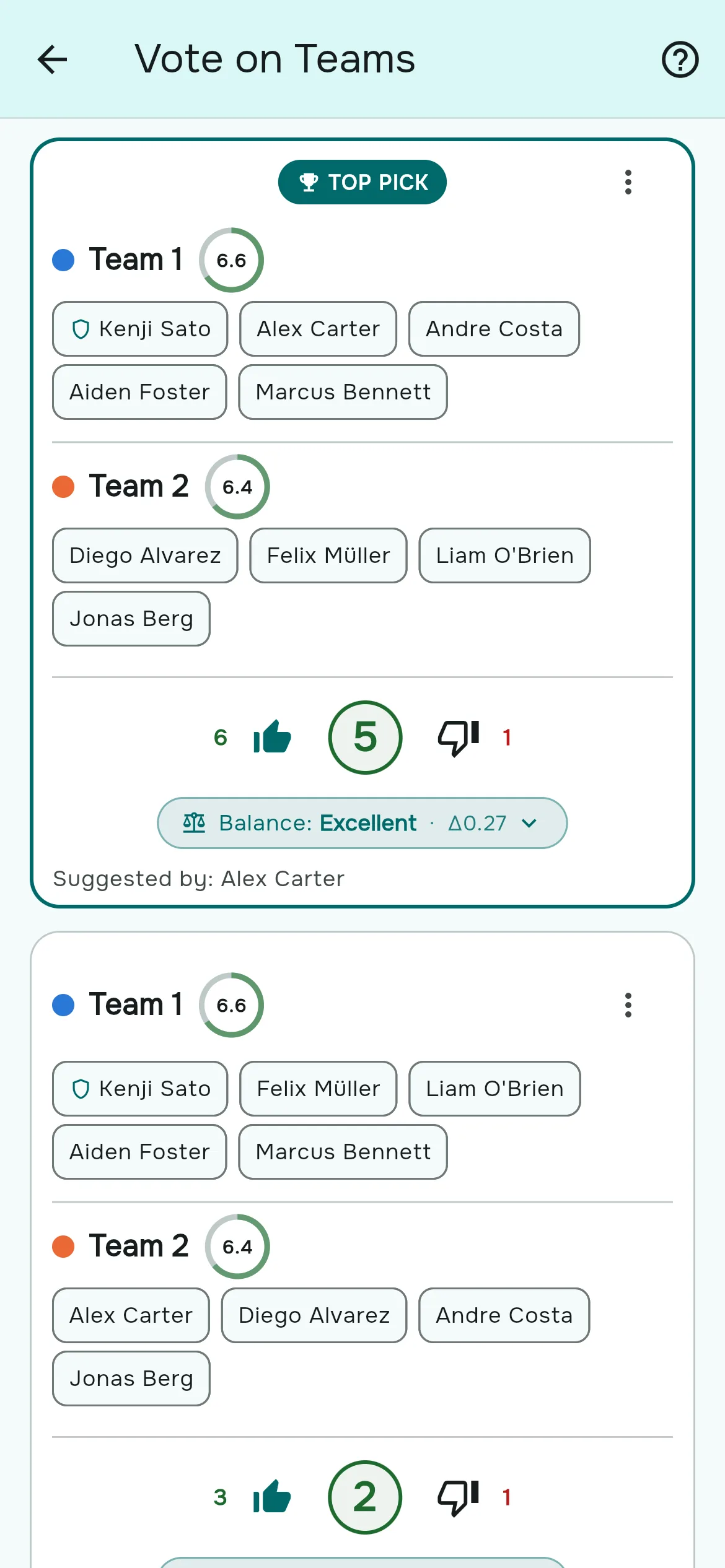
Open Vote on Teams on the game page. Each suggestion shows its teams with every player's rating, the team averages, its balance grade and who suggested it. Underneath are the votes: upvotes, the net score, and downvotes.
- Tap 👍 or 👎 to vote. Tap the same one again to take your vote back, or the other to switch.
- You get one vote per suggestion, and you can vote on as many suggestions as you like.
- Suggestions are ranked by net votes (up minus down), then by the better balance.
- The leader gets a Top pick badge once there are at least two suggestions and it has more upvotes than downvotes.
- A team marked Unhappy means at least half of that team's members voted on the suggestion and none of them upvoted it. It is a signal for the organizer, not a block.
While voting is open, each card's balance grade is recalculated from today's ratings, so a suggestion made yesterday is judged on current form.
Publish the winner
- On the suggestion you want, tap the menu (⋮) → Publish as Final. It doesn't have to be the top pick: the organizer has the final say.
- Add an optional note for everyone and per team, then tap Publish.
- Voting closes for everyone at once, and players who answered Going get the "Teams are out" notification.
After publishing, Previous Votes opens the suggestions read-only, with the grades as they were at the moment of publishing. If you unpublish the teams, voting reopens.
Organizers can also remove a suggestion before publishing: ⋮ → Delete Suggestion.
Tips for a vote that works
- Set a time. Voting has no deadline in the app; it closes when you publish. Tell the group "teams go out at 6 pm" in a notice.
- Start from the balancer. Suggestions that begin from Auto Balance and change one or two players keep the grade honest and the discussion short.
- Watch for blocks. If friends upvote each other's lopsided split, the balance grade on the card makes it obvious, and you still decide what gets published.
- Use discipline sparingly. An organizer can stop a disruptive member from suggesting or voting for a while with the "Block team voting" action. See warnings and suspensions.
Questions people ask
How do I let players suggest teams?
Edit the game and set Team Balancing to Everyone. Members then see Suggest Teams and Vote on Teams on the game page. The Everyone mode is part of Rostara Pro.
Does the most-voted suggestion get published automatically?
No. An organizer publishes any suggestion from its menu with Publish as Final. The top pick is a recommendation.
Can I change my vote?
Yes. Tap the other thumb to switch, or tap your current vote again to remove it.
Can I vote for more than one suggestion?
Yes, one vote per suggestion.
Is voting anonymous?
The vote screen shows counts, not who voted which way.
What if two people suggest the same teams?
No duplicate is created. The second submission counts as an upvote for the existing suggestion.
When does voting close?
When an organizer publishes the teams. Unpublishing reopens it.
Why did the suggestions disappear?
The roster was rebuilt from the RSVPs (Sync to Roster, or the automatic sync at the deadline), which starts a fresh roster. Suggestions belong to the roster they were made for.
Can guests vote?
No. Guests are names on an RSVP, not accounts. Only members with an account can suggest and vote.